
Getting Started | Home | Module I | Module II | Module III | Module IV
Module II: Total Station Data and Google Imagery
Introduction
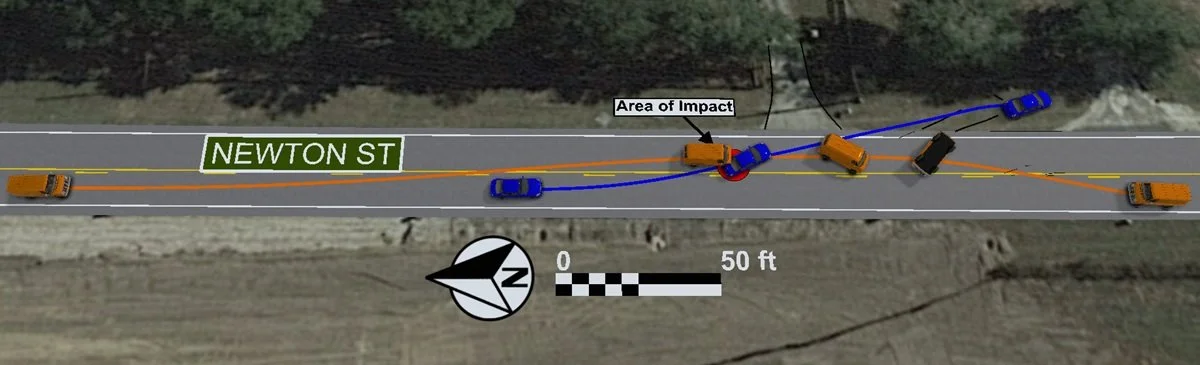
This module demonstrates how to build a scaled, terrain-based crash scene diagram in Virtual CRASH by integrating survey data, aerial imagery, CAD elements, 3D vehicles, lighting controls, and high-resolution output tools.
Reading Assignment
If you have not done so already, please read the following:
The Google Maps Import Tool in Virtual CRASH (VC6 | VC5 | VC4 | Public Safety)
Importing Total Station Data in Virtual CRASH (VC6 | VC5 | VC4 | VC3 | Public Safety)
Printing Scenes (VC6 | VC5 | VC4 | VC3 | Public Safety)
Print Using a Standardized Format with the Print Template Tool (link)
Export Huge Diagrams up to 200,000 x 200,000 Pixels (link)
Video Lecture
Before starting video, please download files: Environments_Module2 (VC4 | VC5 | VC6), TOTAL_STATION.txt
VC4 and VC5 users, please download GMC Panel Van (VC4 | VC5) and use Project > Import (or drag and drop) to place the vehicle into your scene.
Complete the project shown in the Module II video below. Keep the project open and use it to answer the quiz questions.
IMPORTANT: Watch each video through to the end to reach the final quiz. Quizzes are embedded throughout and must be completed as you go in order to continue. In most cases, questions are multiple choice with one correct and three incorrect answers, and you'll need 3 of 4 correct to pass. If you fail, you can review the prior section or retake the quiz. You can't skip ahead, and quizzes must be answered in order. Plan to watch each video in one sitting, since restarting one means retaking its quizzes.Once you complete the final quiz, a "Module Complete" pop-up will appear. Left-click the "copy code" button, enter your email address, and press SUBMIT below.
Once you pass all quizzes for this video, paste the validation code below (Ctrl+V), enter your email, and press the SUBMIT button.
Getting Started | Home | Module I | Module II | Module III | Module IV